Spatial Navigation
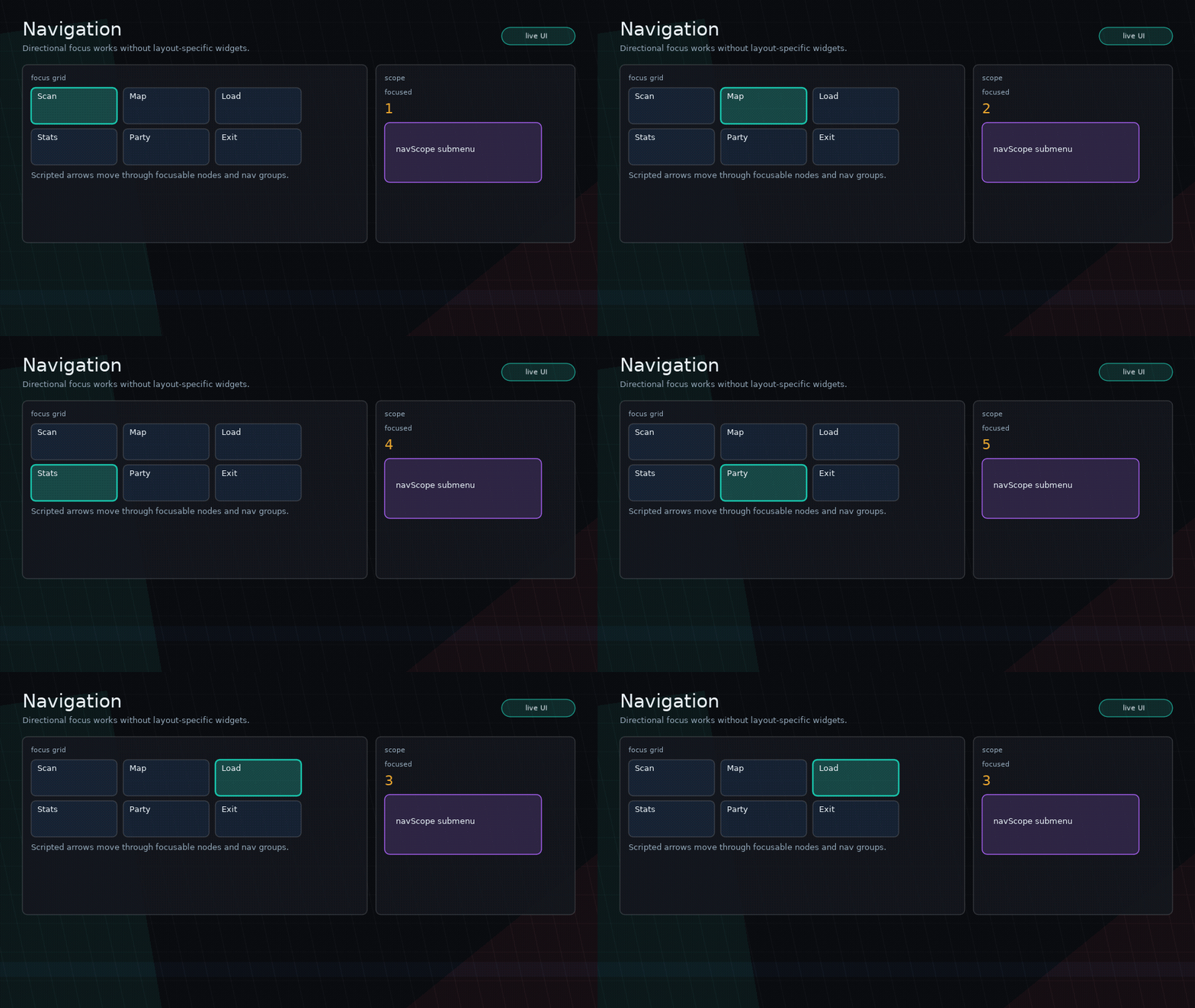
Glyph includes a spatial navigation system for joystick, d-pad, and keyboard-driven interfaces.
ui.navigate(direction) moves focus to the nearest focusable node in a given direction using
screen-space geometry, so it handles two-dimensional layouts correctly without any manual
tab-order configuration.
Navigation prefers candidates that overlap the origin's directional beam. For example, moving Down first looks for controls whose horizontal span overlaps the focused control, then falls back to the nearest row below for uneven grids. This keeps d-pad movement predictable in game menus where rows rarely line up perfectly.
Basic wiring
Call ui.navigate from your input handler. It returns the node that received focus, or nil
if no candidate was found.
function love.keypressed(key)
  if key == "up"    then ui.navigate("up")    end
  if key == "down"  then ui.navigate("down")  end
  if key == "left"  then ui.navigate("left")  end
  if key == "right" then ui.navigate("right") end
end
Gamepad input is opt-in. The default digital mapper wires d-pad movement and confirm/cancel buttons:
The default mapper uses:
dpup,dpdown,dpleft,dprightfor navigationaas Return/confirmbas Escape/cancel
Customize or disable individual buttons by passing a mapping table:
ui.load({
  app = App,
  install = {
    gamepad = {
      navigation = {
        dpup = "up",
        dpdown = "down",
        dpleft = "left",
        dpright = "right",
      },
      buttons = {
        a = "return",
        b = false,
        y = "space",
      },
    },
  },
})
If your app owns Love's gamepad callbacks, call Glyph's mapper manually:
function love.gamepadpressed(joystick, button)
  ui.gamepadpressed(joystick, button)
end

function love.gamepadreleased(joystick, button)
  ui.gamepadreleased(joystick, button)
end
Keyboard, pointer, touch, and mapped gamepad activation all share the same
focus/press/release lifecycle. If accessibility is enabled, d-pad focus changes
emit accessibility focus events and confirm activation emits activate events.
Focusable nodes
button and input nodes are focusable by default. Any other node becomes focusable by
setting focusable = true:
Focusable non-button nodes with onClick and role = "button" use the same
press/release activation lifecycle as ui.button, which is useful for custom
slots, cards, map markers, and HUD regions:
A node is excluded from navigation when:
focusable = falsedisabled = trueinteractive = false
Showing focus visually
Add a focused state style. A common pattern is a highlighted border:
local focusedStyle = ui.style({
  focused = { borderColor = { 0.24, 0.54, 0.95, 1 }, borderWidth = 2 },
})

ui.button({ label = "OK", style = focusedStyle })
You can also apply it globally via ui.setTheme:
ui.setTheme({
  components = {
    button = {
      focused = { borderColor = { 0.24, 0.54, 0.95, 1 }, borderWidth = 2 },
    },
  },
})
navGroup — scoped navigation
Set navGroup on a container to keep focus inside it when a directional candidate
exists within the group. Navigation escapes to the full layout only when no in-group
candidate is found in the given direction.
ui.column({ navGroup = "inventory", gap = 8 }, {
  ui.button({ label = "Sword" }),
  ui.button({ label = "Shield" }),
  ui.button({ label = "Helmet" }),
})
This is the standard solution for the TV navigation problem: moving Down from a horizontal row stays within the row until the edge is reached, then jumps to content below the whole group.
navGroup accepts any value — string, number, or table reference. Nodes with the same
navGroup value are treated as one scope.
Note
navGroup is inherited by children. Place it on the outermost container of the region
you want to scope, not on the individual interactive nodes.
navScope — trapped submenus
Use navScope = true for temporary or nested regions such as flyouts, popovers,
dropdowns, radial menus, and in-panel submenus. A scope is layout-agnostic: it can be a
row, column, stack, panel, scene layer, or any custom focusable region built from
primitives.
local opener

opener = ui.button({
  label = "More",
  onClick = function()
    setOpen(true)
  end,
})

local submenu = open and ui.panel({
  navScope = true,
  navTrap = true,
  position = "absolute",
  right = 20,
  bottom = 60,
  onNavigateExit = function(direction)
    if direction == "left" or direction == "down" then
      setOpen(false)
      return opener
    end
    return false
  end,
}, {
  ui.button({ label = "Compare" }),
  ui.button({ label = "Favorite" }),
  ui.button({ label = "Salvage" }),
})
navTrap = true prevents focus from accidentally escaping the scope. onNavigateExit
runs when the user moves in a direction that has no candidate inside the scope. Return a
node to redirect focus, return false to block the move, or return nil to leave focus
unchanged.
This pattern keeps submenu behavior generic. Glyph manages focus boundaries; your app decides the visual layout, opening state, animation, and escape directions.
Intercepting navigation
Register a "navigate" callback to observe or override movement:
ui.on("navigate", function(direction, candidate, allCandidates, context)
  -- return a node to redirect focus
  -- return false to cancel the move
  -- return nil to accept the default
end)
context includes origin, originCandidate, target, targetCandidate, candidates,
and scope. Existing three-argument callbacks continue to work.
-- Skip over disabled-looking nodes
ui.on("navigate", function(direction, candidate)
  if candidate.props.variant == "locked" then
    return false
  end
end)
First focus
When nothing is focused and ui.navigate is called, focus goes to the top-left
focusable node (smallest y, then smallest x). You can set an explicit starting focus
with ui.setFocus or by calling ui.navigate once at startup:
To focus a known node directly, call ui.setFocus(node). Passing nil clears focus.
Layer and modal awareness
Navigation respects the scene layer stack. Only nodes in accessible layers are considered as candidates:
- Layers with
input = falseare skipped entirely. - Navigation stops at the topmost blocking layer (same rule as pointer input). A blocking modal prevents focus from reaching nodes in layers below it.
- Non-blocking overlays (
blocking = false) are included alongside lower layers.
ui.Navigate
The underlying module is also exposed as ui.Navigate for advanced use: